
Go to your library through your computer's Web browser.
-
In your computer's Web browser, browse your library's catalogue to find the ebook you want to borrow.
-
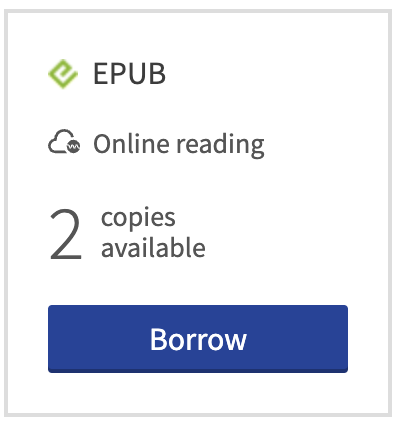
On the search results page or in the book's detailed record, click on the Borrow button.
-
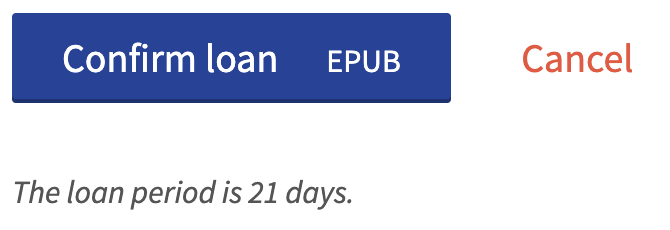
Click on the Confirm your loan button.
-
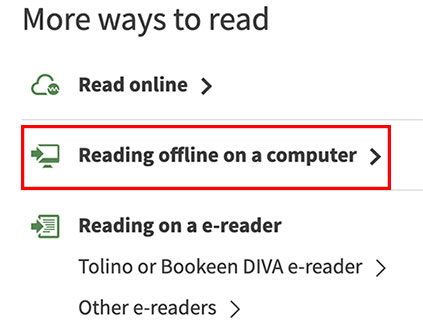
Click on the Reading offline on a computer option to download the ebook file.
When you're borrowing an audiobook, this option is called Listening offline on a computer.
You can also download the file by following the link sent to you by email.
-
Click on the file downloaded from your browser to open it. You can also access your download by opening a new Finder window:
-
Click on your Mac's desktop.
-
Click on the File menu.
-
Click New Finder Window.
-
In your Finder window, click Downloads.
-
Click on the downloaded file. This file has the extension .lcpl.
-
If the downloaded file does not open automatically in Thorium and has the extension .acsm, you will need to open it using Adobe Digital Editions.