
If you already have the Adobe Digital Editions application installed on your computer, proceed directly to (ST2437-en) Entering your Adobe ID in Adobe Digital Editions for Mac.
The Adobe Digital Editions application lets you open ebooks on your computer or transfer them to your e-reader.
1. Determine which version of Adobe Digital Editions you need to install. To verify which version you have if you already downloaded the application:
-
Open the Adobe Digital Editions application on your computer.
-
Click on Adobe Digital Editions in the menu.
-
Click on About Adobe Digital Editions.
-
The version is indicated below the name of the application.
-
To download version 3 of Adobe Digital Editions for PC, click here: https://download.adobe.com/pub/adobe/digitaleditions/ADE_3.0_Installer.dmg. To download the latest version of Adobe Digital Editions, visit the following page and click the link to download Digital Editions for Windows: https://www.adobe.com/solutions/ebook/digital-editions/download.html .
-
Once the download is complete, click on the installation file from your browser to open it. You can also access your download by opening a new Finder window:
-
Click on your Mac's desktop.
-
From the menu, click on File.
-
Click New Finder Window.
-
In your Finder window, click on Downloads.
-
Click on the downloaded installation file. The installation file will have a .dmg extension.
-
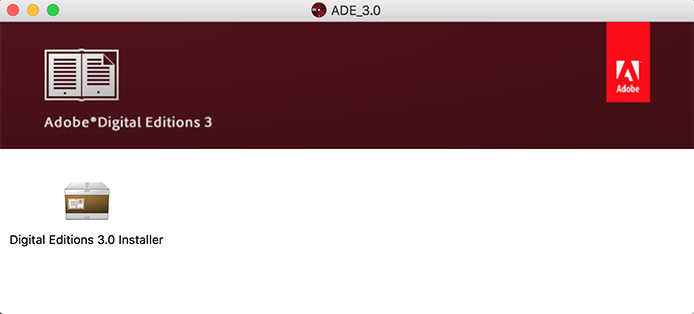
In the new installer window, click Digital Editions Installer.
-
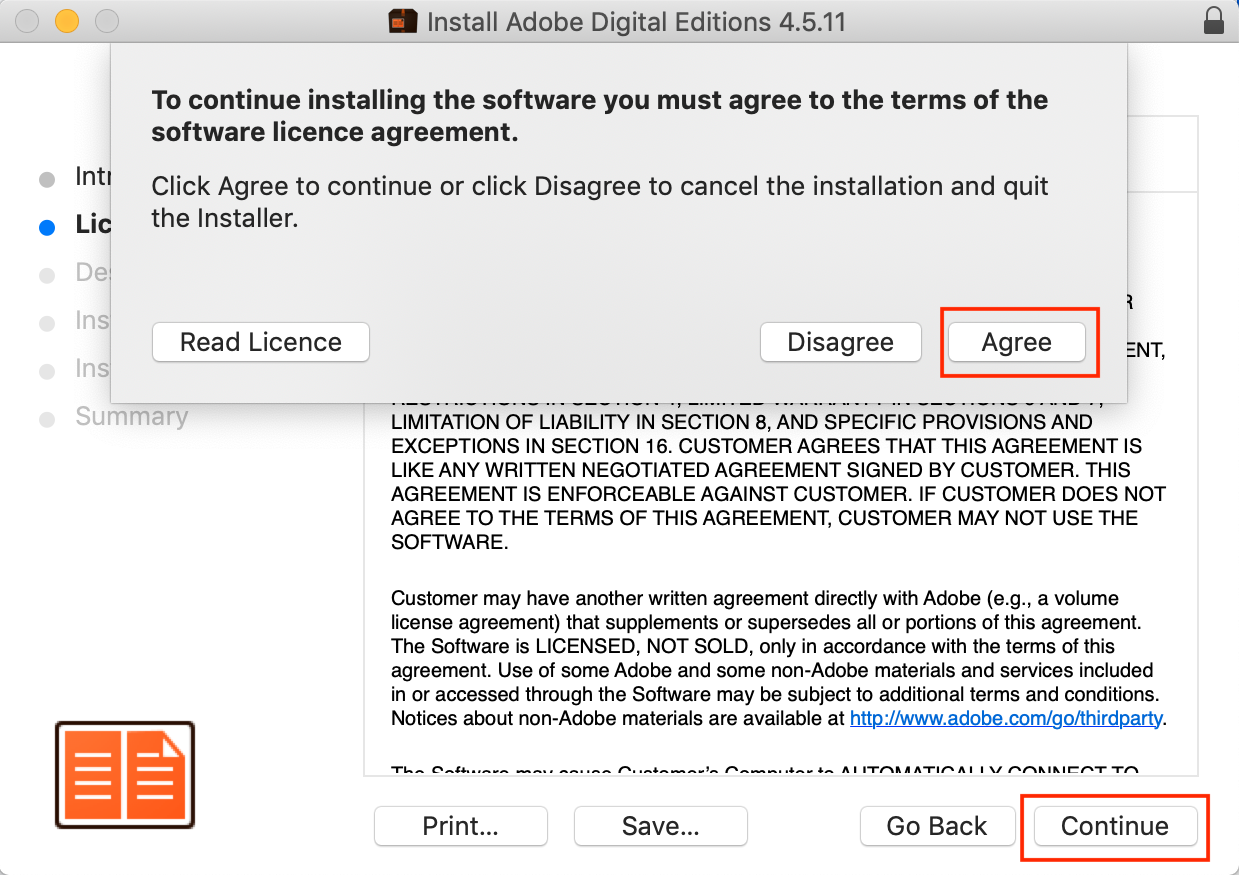
Click Continue, then Continue, and then Accept to accept the terms of the software license agreement.
-
Click Continue, then click Install, then enter your Mac's password and click Install Software to begin the installation.
-
Once the installation is complete, click Close to close the installer.